


Microsoft Outlook
4.3348.25K Reviews
App Specs
- Version
- 5.2628.1
- Updated On
- License
- Free
- Downloads
- 1,000,000,000+
- Developer
- Microsoft Corporation
- Categories
- Productivity
- Platform
- Android, iOS
Screenshots
 Analysis by AppCompare
When my day starts with a work message, a personal appointment and a delivery update competing for attention, I want one place to check what needs action without turning email into another full-time job. That is the practical appeal of Microsoft Outlook: it brings email, calendars and contacts together, and it is most useful when those pieces really do overlap in your routine.
Choosing a home for several accounts
Outlook is a productivity app from Microsoft Corporation, available free, with optional in-app purchases. Its broad adoption—over a billion installs and an average rating of 4.4 from around 10 million ratings—makes it a familiar choice, but popularity is less important than whether its combined inbox-and-calendar approach suits you. It is rated for Everyone, and the current version is 5.2604.1.
I would start by deciding which accounts belong in the app, rather than adding every address I have ever used. A work mailbox and a personal account can make sense together if I need to see both during the day. A rarely checked sign-up address may be better left elsewhere; adding it can bring extra noise into the same workflow. Outlook supports multiple accounts, but the real benefit comes from choosing a useful mix.
From incoming message to next action
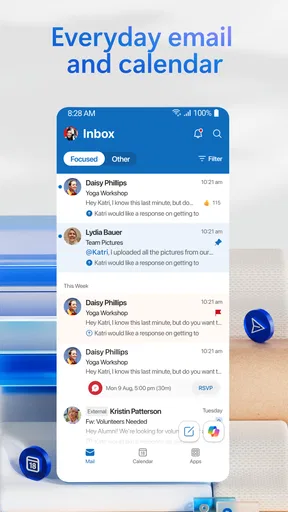
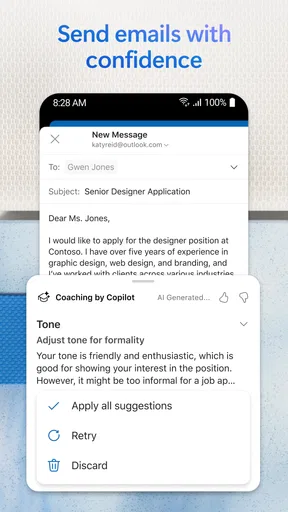
Once the accounts are connected, the workflow is straightforward: scan incoming mail, identify what needs a reply, and turn time-sensitive commitments into calendar items. Focused Inbox can help separate messages it considers important from other mail. I treat that as a sorting aid, not an infallible gatekeeper. When I am expecting a receipt, application response or message from someone new, checking the other inbox view as well is a sensible habit.
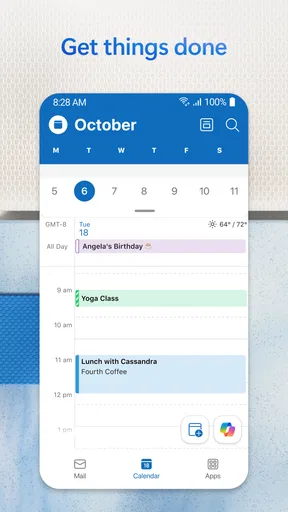
For example, if a colleague emails about a meeting while I am sorting personal messages, having the calendar close to the mailbox reduces the mental jump between reading and planning. I can check the schedule before committing instead of relying on memory. That is a small convenience, but it matters when interruptions are frequent and a quick reply could otherwise become an accidental double-booking.
Sweep is another useful part of the clean-up step. I use it for recurring mail that has become clutter rather than spending time deleting similar messages one by one. The trade-off is that a fast clean-up still deserves a glance at what is being selected. A tidy inbox is helpful; removing something I meant to keep is not.
Where the handoffs help—and where they need checking
Outlook’s calendar and contacts make sense when an email leads to a real-world action: a call, appointment or follow-up with someone whose details I need again. Instead of treating the inbox as a to-do list forever, I can use the calendar for commitments with a time attached and leave email for the conversation itself. That division is more reliable than trying to remember every date from a message thread.
Worth Reading Before You Choose

Baby Panda World Brings Quick Play to Modern Phones, but Its Game Library Feels Busy

ESPN’s Live Game View Makes Following Close Games Easier

QuizzLand Review: A Good Fit for Short Trivia Breaks, Not Every Player

Basketball Stars: Multiplayer Is Fast, but Can It Recover When Matches Go Wrong?

WEBTOON Turns Phone Updates Into a Better Reading Routine

Link to Windows Runs on Shared Habits, Not Social Feeds
There is still a human handoff here. The app can put related tools together, but I need to decide whether a message is actually a commitment, whether the time is correct and whether I have replied to the right person. I would not assume that an automatically sorted message or a convenient calendar view has completed those decisions for me.
How it fits alongside other work tools
For people already using Microsoft services, Outlook can feel like a natural starting point for the workday. The app connects with other Microsoft Office tools, which is handy when an email conversation needs to lead into document work. Still, I would not choose it solely because it sits beside Word, Excel and PowerPoint: if my files and collaboration habits live mainly in another ecosystem, the convenience may be less significant.
Compared with a basic email client, Outlook’s appeal is the combination of mail and scheduling rather than a radically different way to write messages. A simpler client may be preferable if I want fewer screens and only need to check one inbox. Someone who already relies on a separate calendar may also prefer keeping those tools distinct. Outlook is strongest when consolidating accounts reduces switching, not when consolidation merely creates a bigger, busier inbox.
A closer look at using Outlook day to day
I find Outlook easiest to judge by following a message all the way to what I do next: whether I reply, make a calendar commitment, or leave it for later. That workflow also shows where its connected tools save effort and where I still need to make deliberate choices. Next, I’ll look at how those everyday steps feel in practice.
First Impressions
Right off the bat, Microsoft Outlook gave me that sleek, professional vibe. The app’s design is clean and intuitive, which makes navigating through my emails a breeze. Whether you’re a tech-savvy guru or just someone looking to keep their inbox organized, Outlook greets you with a user-friendly interface that doesn’t require a tech degree to understand.
Getting Started
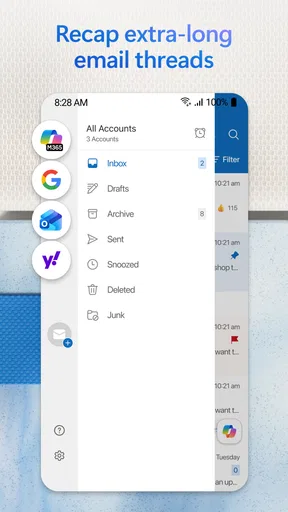
Setting up my account was super straightforward. I appreciated how Outlook supports multiple email accounts, so whether you’re juggling work, personal, or that secret shopping email, it’s all in one place. Adding accounts was as easy as pie, and the app even helped me with a step-by-step guide.
Features That Stand Out
One of the first features I noticed was the Focused Inbox. It’s like having a personal assistant that sorts through your emails and highlights the important ones. No more sifting through spam and promotional emails to find what really matters.
Another feature I’ve come to love is the integrated calendar. It’s seamlessly woven into the app, so scheduling meetings or setting reminders is just a few taps away. Plus, the calendar syncs with all my devices, so I’m always on top of my schedule.
Outlook also offers a pretty neat feature called "Sweep." It allows you to clean up your inbox with a simple swipe, making it perfect for those who like to keep things tidy. It’s like Marie Kondo for your emails!
Performance and Reliability
Performance-wise, Outlook is pretty solid. The app runs smoothly and loads quickly, even when dealing with a hefty backlog of emails. I haven’t experienced any crashes or bugs, which is a huge plus in my book.
Security is another area where Outlook shines. With all the phishing scams and data breaches going around, it’s reassuring to know that Outlook has robust security measures in place. Two-step verification and advanced threat protection are just a couple of the features that keep my information safe.
User Experience
One of the things that make Outlook stand out from the crowd is its integration with other Microsoft Office apps. If you’re someone who’s already using Word, Excel, or PowerPoint, you’ll find it incredibly convenient to access these tools directly from Outlook. It’s like having a mini office suite right in your pocket.
The app also supports a wide range of add-ins, which are basically little enhancements that can boost your productivity. From Evernote to Trello, there’s an add-in for almost everything you might need.
Limits worth considering before settling in
The main friction I notice with an all-in-one inbox is that it can blur boundaries. If work and personal messages arrive in the same place, the convenience of a unified view can also make it harder to stop checking work after hours. Keeping only the accounts I genuinely need in Outlook—and deliberately switching attention between them—helps prevent the app from becoming a single stream of constant alerts.
Focused Inbox is useful, but any automatic prioritization involves judgment by the app. I would not rely on it as the only way to catch a deadline or an important first-time sender. For a high-stakes message, search or check the broader inbox rather than assuming the focused view has surfaced everything. Likewise, Sweep is best used for mail patterns I recognize, not as a reflexive swipe through unfamiliar messages.
Outlook’s free starting point makes it easy to try, while in-app purchases range from $1.99 to $20.00 per item. I would first use the core mail-and-calendar routine and only consider a purchase if I can name a specific need it addresses. There is no reason to pay simply because the option exists, especially if the basic workflow already covers the way I manage messages and appointments.
A realistic day, from message to follow-through
Imagine I am coordinating a project while also arranging a personal appointment. In the morning, I check the work message, use the calendar to see whether the suggested meeting time conflicts with anything, and reply only after checking the schedule. Later, I deal with a stream of routine updates and use Sweep to reduce a recurring source of clutter. Before finishing, I review the other inbox view for a reply that may not have been prioritized and check the calendar for the day ahead.
The useful outcome is not that every task happens automatically. It is that the steps sit close together: read, decide, schedule, respond and tidy. The weak point is still follow-through. A message that needs a considered answer can remain unanswered even in a well-organized app, so I find it helpful to treat the inbox as a place to process decisions, not proof that those decisions are complete.
Who benefits most from the combined approach
I would recommend Outlook to someone who regularly moves between several email accounts and wants the calendar nearby while deciding what to do next. It is especially practical when work conversations lead directly to meetings or when personal appointments compete with a busy professional schedule. The combination can cut down on app switching without asking the user to learn a complicated system.
I would skip it, or keep it secondary, if I use only one mailbox and value a stripped-back email experience above calendar integration. It may also be the wrong fit if I prefer a different provider’s calendar as my main planning tool or want a strict separation between work and personal communication. In those cases, a focused email client or the calendar app I already trust may be easier to manage.
Final Thoughts
All in all, Microsoft Outlook is a robust and versatile email app that caters to both casual users and professionals alike. It’s packed with features that make managing your inbox a less daunting task, and its seamless integration with other Microsoft products is a huge bonus. Whether you’re a die-hard fan of the Microsoft ecosystem or just looking for a reliable email app, Outlook is definitely worth a try.
So there you have it! If you haven’t already, give Outlook a whirl and let me know what you think. Happy emailing!
My verdict after weighing the trade-offs
I see Outlook as a practical organizer rather than a cure for inbox overload. Its strongest case is a day where email, calendar and contacts repeatedly feed into one another; its weakest is a routine where those tools are separate by choice and a combined view adds distraction. The app first appeared on January 28, 2015, and it continues to make sense for people who want that connected workflow, provided they stay attentive to sorting and follow-up.
For me, the best way to try it is to add the accounts that genuinely shape my day, check how Focused Inbox handles incoming mail, and use the calendar for actual commitments rather than every vague intention. Outlook is free to begin with, runs on Android 10 or later, and is a capable option for keeping communication and planning in one place. If that sounds like a useful simplification, I’d give it a whirl; if it sounds like one more inbox to monitor, I’d choose a simpler setup instead.
Pros
- Seamless integration with Office apps.
- Customizable email organization tools.
- Robust security and encryption features.
- Efficient calendar and scheduling functions.
- Cross-platform accessibility.
Cons
- Occasional sync issues with emails.
- Interface can be overwhelming for new users.
- Some features require a Microsoft 365 subscription.
- Consumes significant device storage.
- Limited offline functionality.
FAQs for Microsoft Outlook
What platforms is Microsoft Outlook available on?
Microsoft Outlook is available on multiple platforms, including Android and iOS for mobile devices. It can also be accessed on desktop via Windows and macOS. This cross-platform availability ensures that you can manage your emails, calendars, and contacts seamlessly across all your devices.
Is Microsoft Outlook free to use on mobile devices?
Yes, Microsoft Outlook is free to download and use on both Android and iOS devices. However, certain premium features and additional storage options may require a Microsoft 365 subscription. The free version provides basic email and calendar functionalities suitable for most users.
How does Microsoft Outlook enhance email productivity?
Microsoft Outlook enhances email productivity by integrating email, calendar, and tasks into one app. It offers features like Focused Inbox, which prioritizes important emails, and the ability to schedule emails and set reminders. These tools help users manage their time and communication more effectively.
Can I integrate other email accounts with Microsoft Outlook?
Yes, Microsoft Outlook supports integration with various email services such as Gmail, Yahoo Mail, and others. This allows users to manage multiple email accounts from a single app, making it easier to keep track of all your communications in one place.
Is Microsoft Outlook secure for handling sensitive information?
Microsoft Outlook offers robust security features to protect your data, including encryption, spam filtering, and advanced threat protection. It also provides options for two-factor authentication to enhance account security. These features make Outlook a reliable choice for handling sensitive information.


